
Connect a GoIP GSM gateway
A GoIP GSM gateway usually sits behind NAT without a fixed public IP, so the switch cannot send calls to it like to a normal vendor. Instead the gateway registers with the switch as an account, and a vendor connection that points at the switch itself hands calls over to that registration. This tutorial connects one GoIP gateway and routes calls to it. Allow about 30 minutes.
The example uses the account goip100 for the gateway and the switch address 203.0.113.10.
Before you start
Section titled “Before you start”- You have Administrator access to the panel.
- The GoIP gateway is online with working SIM cards, and you can open its web interface.
- A customer and an account that will send calls to the gateway already exist, with a tariff that has rates for the mobile destinations. See Set up a wholesale customer.
How it works
Section titled “How it works”The connection of the GoIP vendor has the switch’s own address as Destination and a CLD Translation Rule that puts the gateway’s account name in front of the number: +380501234567 becomes goip100;cld=+380501234567. When the switch receives this request, it finds the current registration of goip100, takes the number after cld= and sends the call to the gateway with +380501234567 in the request URI. The To header keeps the long form, so the gateway must read the number from the request line.
Step 1: Create the gateway’s account
Section titled “Step 1: Create the gateway’s account”- Open My Customers → Accounts and click Add.
- Enter Account Name:
goip100. - Keep the generated Password or type your own, and copy it for step 2.
- Select a Service Plan and Routing Group. They apply to calls the gateway itself sends in, for example calls arriving on its SIM cards.
- Check Registration Allowed.
- Click Save & Close.
Result: the account goip100 is listed. See Accounts for the other fields.
Step 2: Register the gateway
Section titled “Step 2: Register the gateway”-
In the GoIP web interface open Configurations → Basic VoIP.
-
Set the fields below and click Save Changes.
Field Value Config Mode Single Server ModeAuthentication ID goip100Password The password of the account SIP Registrar Server 203.0.113.10, the IP address or domain of your switchRe-register Period (s) 60 -
Open Configurations → Advance VoIP.
-
Set Get Callee Number:
By Request Lineand click Save Changes.
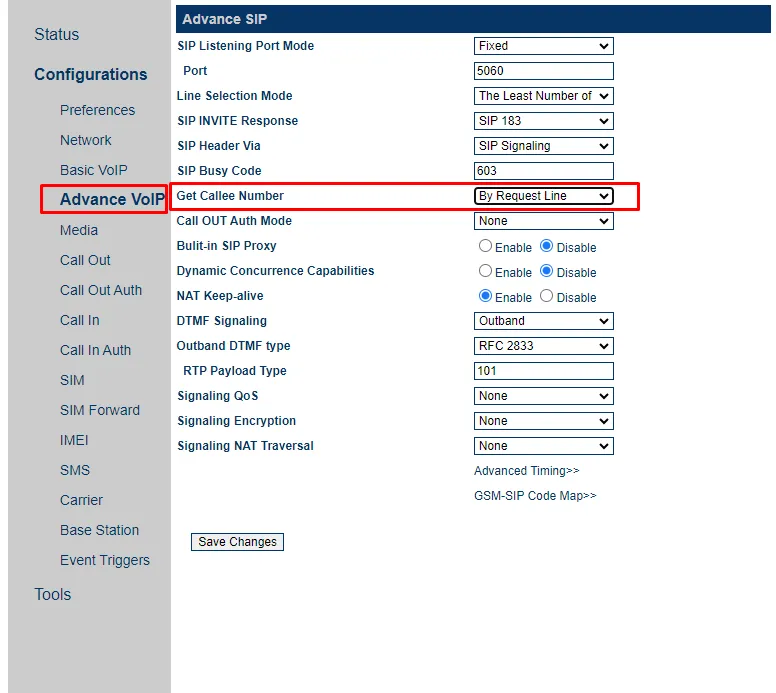
Result: in My Customers → Accounts the status icon of goip100 turns into a green check. Hover over it to see the gateway’s user agent and address.
Step 3: Create the vendor and its connection
Section titled “Step 3: Create the vendor and its connection”- Open Vendors → Vendors, click Add Vendor, enter Vendor Name
GoIPand click Save & Close. - Click Connections in the row of the vendor, then Add Connection.
- Enter Connection Name
goip100and select Protocol SIP/UDP. - Enter Destination:
203.0.113.10, the address of your own switch. - Enter CLD Translation Rule:
s/^/goip100;cld=+/. - Click Save & Close.
The + after cld= adds a plus sign in front of the number, which most mobile networks require. Drop it if your numbers already arrive in international format with +. If you named the account differently, use that name in the rule.
Result: the vendor GoIP has one connection. See Connections.
Step 4: Price and route the calls
Section titled “Step 4: Price and route the calls”- Open Vendors → Termination Routes, click Add, enter Name
GoIPand select Currency. Click Save & Close. - Click Routes and add a route for every prefix the SIM cards should carry, with the price a minute costs you on the SIM. See Termination routes.
- Open Vendors → Routing Groups and open the group of the account that sends the calls, or create one.
- Add a row with Vendor
GoIP, Connectiongoip100and Termination RouteGoIP, and click Save & Close. See Routing groups.
Result: calls of the customer’s account to the prefixes of the termination route go to the gateway.
Step 5: Test it
Section titled “Step 5: Test it”- Open Tools & Debugs → Test Dialplan, set Mode to Authenticated Call, select the customer’s account as Authenticated Account and enter a mobile number as CLD. Click Proceed. Routing Entries list the connection
goip100. - Make a test call from the customer’s account to a mobile number.
- Open Reports → Call Records (CDRs) and find the call, then Reports → Vendors Call Records to see its cost on the
GoIPvendor.
If the call fails with 404 Not Found, the gateway is not registered: check step 2 and the account’s status icon.
What’s next
Section titled “What’s next”- Connections: capacity limits per connection, one per SIM bank.
- Number translation: more about translation rules.
- Connection for a vendor with a dynamic IP: the same technique for any vendor that registers with you.