
Set up a calling card product
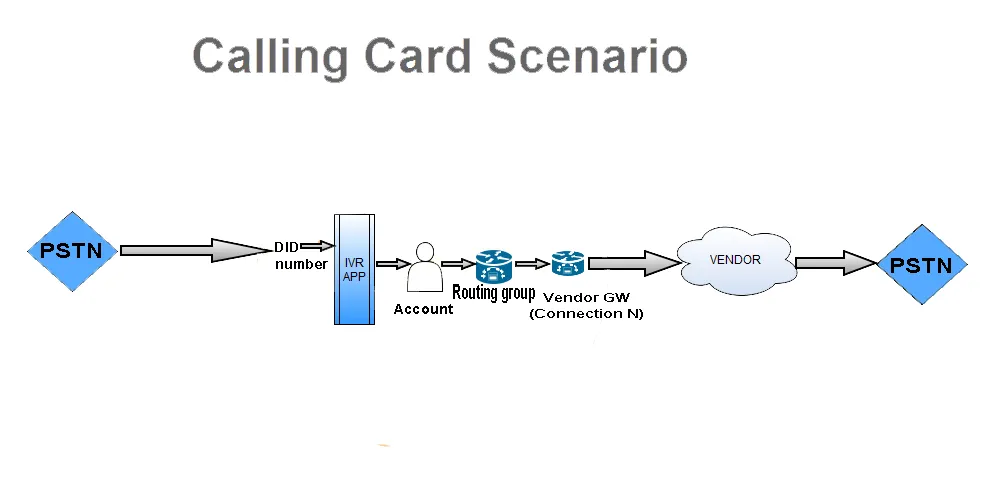
A calling card is a prepaid account with no device: the user dials your access number, the Calling Card IVR application asks for the card number and PIN, announces the balance and connects the call through the account’s routing group. At the end of this tutorial a batch of cards exists, the access number answers with the IVR, and a test card makes a call. Allow about an hour, plus the time for the vendor side.
Before you start
Section titled “Before you start”- You have Administrator access and the Calling Card module is activated on your switch.
- The vendor side is set up: a vendor, a connection, termination routes and a routing group, as in Set up a wholesale customer steps 2 to 4.
- You have a DID from a provider for the access number, with the provider’s gateway IP.
- You decided the card number length and the PIN length, for example 10 digits and 4 digits.
Step 1: Create the tariff plan for the cards
Section titled “Step 1: Create the tariff plan for the cards”- Open Tariffs & Currencies → Tariff Plans and click Add.
- Enter Name:
Red Card, select the Currency the cards are sold in and set Billing Type to Pre-Paid. - Set Connect Fee and Grace Period, sec if the product has them, and Avg. Call Duration, sec to
180. - Click Save & Close, then Rates in the row, and upload or add the rates of the destinations the card sells.
Result: the plan shows its rates as Currently Active. See Rates.
Step 2: Create the card accounts
Section titled “Step 2: Create the card accounts”Each card is an account: the Account Name is the card number and the VoIP Password is the PIN the IVR asks for.
- Prepare a spreadsheet with one row per card and the columns
Action,Account Name,VoIP Login,VoIP Password,Web Password,Service Plan,Routing Group,Balance,Credit Limit,Batch Tag:AinAction, a random 10-digit number inAccount NameandVoIP Login, the 4-digit PIN inVoIP Password, the ids of the plan and the routing group, the card’s value inBalance,0inCredit Limitandred-card-2026-05inBatch Tag. Download the account list once to get a file with the right header and the ids. - Open My Customers → Accounts, click Upload… and choose the file.
- Check the result message; failed rows come back as an
Accounts errorsfile. - Filter the list by Batch Tag
red-card-2026-05to see the batch.
Result: the batch is listed with the plan, the routing group and the card value as Balance. See Accounts and Accounts generator for the pattern syntax used in generated files.
Step 3: Add the Calling Card IVR application
Section titled “Step 3: Add the Calling Card IVR application”Follow Add a calling card IVR application: create the application Red Card with Type Calling Card and the languages the IVR offers.
Result: the application is listed under DIDs & IVR Apps → IVR Applications.
Step 4: Set the card behaviour
Section titled “Step 4: Set the card behaviour”Follow Configure calling card parameters: under Advanced Parameters of the application set at least Card Number Length to 10, Use Word PIN to False so that the PIN is checked, Announce Balance to True, and Allow Empty PIN to False.
Result: the IVR asks for a 10-digit card number and a PIN, and announces the balance.
Step 5: Point the access number at the IVR
Section titled “Step 5: Point the access number at the IVR”- Open DIDs & IVR Apps → DID Pool and click Add.
- Enter the DID, set Incoming DID/CLD to the number as the provider sends it, and select the provider’s Vendor and Connection in the rule.
- Click Assigned to and select IVR
Red Card. - Click Save & Close.
Result: the DID is listed with Assigned to IVR Red Card. See Create a DID.
Step 6: Test it
Section titled “Step 6: Test it”- Open Tools & Debugs → Test Dialplan, set Mode to Authenticated Call, select one card in Authenticated as and enter a CLD the card sells. The Result must show the plan
Red Cardand a price. - Call the access number from any phone. The IVR offers the languages, asks for the card number and PIN, and announces the balance.
- Dial a destination. After hang-up, open Reports → Call Records (CDRs): the call is listed under the card’s account with its price, and the balance of the account went down.
- Open Reports → DIDs Call Records to see the incoming leg on the access number.
If the IVR says the card is wrong, check Card Number Length and that the card number has exactly that many digits; if it never asks for a PIN, add Use Word PIN False; if it rejects the PIN, check that Separate VoIP Login and VoIP password is on for the account and VoIP Password holds the PIN.
Result: a card calls through the IVR and is billed.
What’s next
Section titled “What’s next”- Calling card configuration options: CLI registration, hot dial, black list, custom greetings.
- Set up top-up cards: let users add value from a second card.
- Vouchers: top-ups through the self-care portal instead of the IVR.
- Calling card scenario checklist for the next product.