
DID ranges
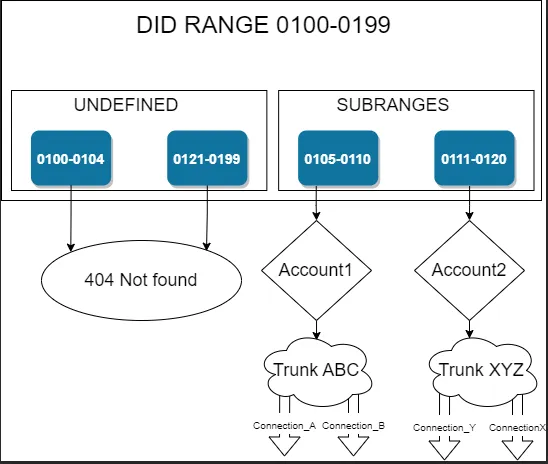
A DID range is a block of consecutive numbers, such as 0100 to 0199, kept in the DID Pool as one entry. You add the block once with the provider’s authentication rule, then split it into sub-ranges and single numbers and assign each part to an account, an IVR application or a sub-customer. Numbers of the range that are not allocated reject calls with 404 Not Found.
Where to find it
Section titled “Where to find it”Open DIDs & IVR Apps → DID Pool in the left sidebar. The URL is /dids.php. A range is a row of the pool with DID Number/Range shown as start - end; Open Range Allocations (folder icon) in its row opens the range at /dids.php?i_did_allocated_from=<id>. The screen needs the DID pool enabled for your customer.
What you see
Section titled “What you see”Inside a range the list has the same columns as the top level of the DID Pool: DID Number/Range, Description, Assigned to, Country, Dest. Description and Status. It shows only the direct allocations of this range: its sub-ranges and single numbers. The breadcrumb above the list shows the path, for example DID Pool › 0100 - 0199 › 0105 - 0110; click a level to go back to it.
A sub-range has its own Open Range Allocations icon, so a range can be split as deep as you need. A range assigned to a sub-customer has no icon: the sub-customer allocates it in their own DID Pool.
The filters work on the current level only, and the DID filter matches the first number of a sub-range, not the numbers inside it. In the range 0100 - 0199 with a sub-range 0105 - 0110, the filter 0105 finds the sub-range, while 0107 finds nothing. Use % as a wildcard: 01% matches every entry starting with 01.
Create a range
Section titled “Create a range”- Click Add on the top level of the DID Pool.
- Set Type to Range.
- Enter Range Start and Range End, for example
0100and0199. Both must have the same number of digits, and the start must be lower than the end. - Select Assigned to if the whole block goes to one account, IVR application or sub-customer. Keep Not Assigned to allocate it in parts.
- Select the provider’s Vendor and Connection under Authentication Rules. Leave Incoming DID/CLD empty when the provider sends the numbers exactly as in the range.
- Click Save & Close.
When the provider adds a technical prefix or sends the numbers in another format, enter a translation rule in Incoming DID/CLD. The rule is applied to every number of the range to get the number the provider sends: s/^/44/ expects 440100 to 440199 for the range 0100 to 0199. The rule must keep every number distinct. See Number translation.
Allocate part of a range
Section titled “Allocate part of a range”- Click Open Range Allocations in the range’s row.
- Click Add.
- Select Type: Range for a sub-range with its Range Start and Range End, or Number for a single DID.
- Select Assigned to and, if you charge for the numbers, a Selling Charging Group.
- Click Save & Close.
A sub-range must lie inside its parent and must not overlap the other allocations of the parent. The form of a sub-range or a number inside a range has no Authentication Rules: calls to it are matched by the rules of the top-level range.
Edit or delete a range
Section titled “Edit or delete a range”You can change the bounds of a range as long as all its allocations still fit inside. Assigned to, Selling Charging Group, Description and DID Translation Rule can be changed at any time. A range delegated to you by your wholesaler shows its bounds read-only.
Upload and download allocations
Section titled “Upload and download allocations”Download and Upload work on the level that is open. Open a range first to export or load its allocations; rows of an uploaded file are added inside that range. The file uses the same columns as the top-level pool. A row with an empty DID Range End is a single number; a row with a value is a range from DID to DID Range End. S finds the entry to update by the value in DID, which for a range is its first number; U and D use Id. See Upload and download.