
Quickstart: wholesale
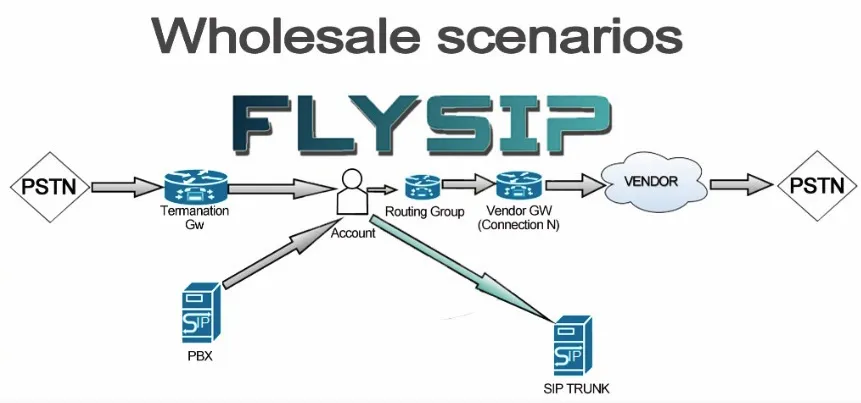
In the wholesale scenario a customer sends you calls from their own PBX or SIP trunk, authenticated by IP address, and you terminate them through a carrier. At the end of this quickstart a test call from the customer’s IP reaches the vendor, and both of you see it in the CDRs with the right price. Allow about an hour.
The example uses a vendor called Example Carrier with the gateway sip.example-carrier.net, a customer called Example Telecom whose PBX has the IP 203.0.113.10, and traffic to the United States (prefix 1).
Before you start
Section titled “Before you start”- You have Administrator access to the panel and you completed First login, including the base currency.
- You have a termination agreement with at least one carrier: the gateway address, the authentication method (IP or SIP digest) and their price list.
- You know the IP address the customer sends calls from.
Step 1: Add the vendor
Section titled “Step 1: Add the vendor”- Open Vendors → Vendors.
- Click Add Vendor.
- Enter Vendor Name:
Example Carrier. - Set Base Currency to the currency of the vendor’s price list. Prices are converted to your base currency through Exchange Rates.
- Set Time Zone to the time zone the vendor bills you in. Reconciliation is easier when both CDR sets use the same day boundaries.
- Leave Balance at
0. It goes negative as you terminate calls and comes back up when you record a payment to the vendor. - Click Save & Close.
Web Login and Web Password are generated automatically. Give them to the vendor if you want them to see their CDRs in the vendor portal.
Result: the vendor appears in the list with Balance 0 and no connections yet.
Step 2: Add a connection
Section titled “Step 2: Add a connection”A connection is one SIP gateway of the vendor. One vendor can have several.
- In the Vendors list click Connections in the row of
Example Carrier. - Click Add.
- Enter Connection Name:
Example Carrier main. - Set Protocol:
SIP. - Enter Destination:
sip.example-carrier.net. Add:portonly when the gateway does not listen on5060. - If the vendor authenticates you by SIP digest, enter Username and Password. Leave both empty for IP authentication; in that case the vendor must allow the switch’s signalling IP on their side.
- Set Capacity and Max CPS to the limits from the agreement, or leave them empty for unlimited.
- Click Save & Close.
Result: the connection is listed under the vendor as SIP:sip.example-carrier.net.
Step 3: Add termination routes
Section titled “Step 3: Add termination routes”Termination routes hold the vendor’s price list: a prefix, the billing intervals and the price per minute. Every connection you want to use needs a termination route.
- Open Vendors → Termination Routes.
- Click Add, enter Name:
Example Carrier USD, select the vendor’s Currency and click Save. - Click Routes in the row you created.
- Add the routes in one of two ways:
- Click Add Route and enter Prefix:
1, Interval 1:60, Price 1:0.010, Interval N:60, Price N:0.010. Click Save & Close. Repeat for every prefix. - Click Upload and load the vendor’s price list from a CSV file. Map the columns once; the mapping is remembered for the next upload.
- Click Add Route and enter Prefix:
Interval 1 and Price 1 apply to the first billing interval, Interval N and Price N to every following one. 60/60 is per-minute billing, 1/1 is per-second billing.
Result: the Routes list shows your prefixes with Currently Active status.
Step 4: Create a routing group
Section titled “Step 4: Create a routing group”A routing group decides which connection handles a call. It is assigned to accounts.
- Open Vendors → Routing Groups.
- Click Add.
- Enter Group Name:
Wholesale default. - Click Add Row and select Vendor
Example Carrier, ConnectionExample Carrier mainand Termination RouteExample Carrier USD. - Leave Order # at
1. With several connections, the lowest order is tried first; use Weight to split traffic between connections with the same order. - Click Save & Close.
Result: the routing group is listed with one entry. You can add more vendors to the same group later and the switch will fail over in order.
Step 5: Create a tariff plan with rates
Section titled “Step 5: Create a tariff plan with rates”The tariff plan is what you charge the customer: a price list that mirrors the termination routes with your margin on top, plus the billing rules. The sidebar manages tariffs and their plans on one screen.
- Open Tariffs & Currencies → Tariff Plans.
- Click Add.
- Enter Name:
Wholesale USA, select your Currency and set Avg. Call Duration, sec to a realistic value such as120. Leave Connect Fee and Free Seconds at0for wholesale. - Set Billing Type:
Post-Paidfor a customer you invoice,Pre-Paidfor one who pays in advance. - Click Save & Close.
- Click Rates in the row of the new plan.
- Click Add Rate and enter Prefix:
1, Interval 1:60, Price 1:0.012, Interval N:60, Price N:0.012. Click Save & Close. Or click Upload and load your price list from a CSV file, exactly like the termination routes.
Result: the plan shows Currently Active rates for every prefix you sell.
Step 6: Create the account
Section titled “Step 6: Create the account”In wholesale the customer’s PBX or SIP trunk is one account. The account carries the balance and the credit limit.
- Open My Customers → Accounts.
- Click Add.
- Enter Account Name:
example-telecom. For IP authentication the name is only a label; the PBX never sends it. - In Routing & Billing select Service Plan
Wholesale USAand Routing GroupWholesale default. - Set Balance and Credit Limit. A prepaid customer gets a positive balance and Credit Limit
0; a postpaid customer gets Balance0and a credit limit equal to the agreed exposure. - Set Time Zone to the customer’s time zone so their CDRs show local time.
- Click Save & Close.
Result: the account appears in the list with the service plan and routing group you selected.
Step 7: Add an authentication rule
Section titled “Step 7: Add an authentication rule”The rule tells the switch that calls arriving from the customer’s IP belong to this account.
- In the Accounts list open the Actions menu of
example-telecomand click Authentication Rules. - Click Add.
- Enter Remote IP Address:
203.0.113.10. - Leave Incoming CLI/ANI empty to accept any caller number from that IP. Set it when the same IP sends traffic for several customers.
- Click Save & Close.
The Advanced Parameters of a rule can override the Tariff and the Routing Group of the account, which lets one account carry several price levels. See IP-to-IP authentication and Understanding authentication.
Result: the rule is listed for the account with the customer’s IP.
Step 8: Test the dialplan
Section titled “Step 8: Test the dialplan”The dialplan test simulates a call without sending a single SIP packet.
- Open Tools & Debugs → Test Dialplan.
- Set Mode:
Not Authenticated Call. - Enter CLD (destination):
12125551234, CLI:441234567890and Remote Address:203.0.113.10. - Click Proceed.
The Result block must show Authenticated Account example-telecom, Tariff Wholesale USA, Routing Group Wholesale default, the matched Prefix and the Price. If it shows an error, the message says which step is missing: no authentication rule for the IP, no rate for the prefix, or no route in the routing group.
Step 9: Make a test call
Section titled “Step 9: Make a test call”- Ask the customer to dial a US number from the PBX at
203.0.113.10, or send one yourself from a SIP trunk with that IP. - Open System Management → Active Calls while the call is up. It shows the account, the connection and the media relay in use.
- After hang-up open Reports → Call Records (CDRs). The call appears once with the customer’s price.
- Open Reports → Vendors Call Records. The same call appears with the vendor’s price.
If the call fails, open Tools & Debugs → SIP Logs Viewer, search by the CLD and read the final response code. See SIP response codes.
Result: one CDR for the customer and one for the vendor, with the margin between the two prices.
What’s next
Section titled “What’s next”- Quickstart: retail: accounts for end users with softphones.
- Understanding routing: routing policies, failover, weighted distribution.
- Understanding rating and billing: intervals, connect fees, rounding.
- Mass loading of rates: the CSV upload in detail.
- Wholesale scenario checklist: the same steps as a printable list.